This guide provides a step-by-step overview of using Omnia: VOXO Meet for meetings. VOXO Meet is a cloud-based video conferencing service that lets you meet with anyone, anywhere, on any device.
VOXO Meet Availability:
VOXO Meet is available for all users with video meetings enabled on their extension.
Starting a Meeting
- Starting a Meeting:
- To start a meeting, click Start meeting.

Providing Meeting Details
- Sharing a Meeting:
- To share meeting details, click Copy meeting info and send these details to another party.
- To join the meeting yourself, click Join Meeting.

Joining the Meeting
- Preparing to Join a Meeting:
- Enter your name and select Continue.
- You will see a dialog box asking, “Are you ready to join?” Here, you can:
- Turn your camera on/off (Ctrl + E).
- Mute/unmute your microphone (Ctrl + D).
- Change background effects.
- Reduce mic noise.
- Adjust additional settings like changing your name before joining the meeting.
- These options are also available once you are in the meeting.

Selecting Devices
- Selecting Audio and Video Devices:
- Camera: Click the dropdown to select your camera.
- Microphone: Click the dropdown arrow to select your microphone and click Test your mic.
- Speakers: Click the dropdown to select your speakers and click Play test sound.
- Click Join to enter the meeting.

Meeting Controls
- Managing Audio and Video During a Meeting:
- Turn your camera on/off: Click the camera button or press (Ctrl + E).
- Mute/unmute your microphone: Click the microphone button or press (Ctrl + D).

Additional Features
- Viewing Active Participants:
- Click People to see all active participants.

- Sending a Chat Message:
- Click Chat to send a chat message.

- Using Reactions:
- Click React to pick an emoji, like a thumbs up.

- Raising Your Hand:
- Click Raise to raise your hand, and click again to lower it.

- Sharing Your Screen:
- Click Share to share your screen. Options include Chrome Tab, Window, or Entire Screen. You can also share tab audio.

Recording and Network
- Recording the Meeting:
- To record the meeting, click Start recording. Click Stop recording when done.

- Viewing Network Status:
- Click Network to view your network status, including packet loss and download/upload rate.

View Options
- Switching to Grid View:
- Click Grid View to switch to the grid view.

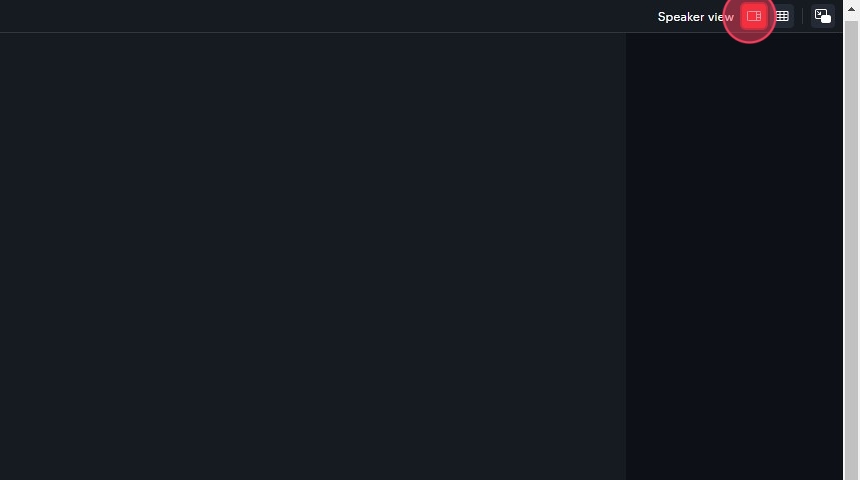
- Switching to Speaker View:
- Click Speaker View to switch to the speaker view.
- Using Picture-in-Picture View:
- Start Picture in Picture: Click this to begin a picture-in-picture view.
- Stop Picture in Picture: Click this to end the picture-in-picture view.

Ending the Meeting
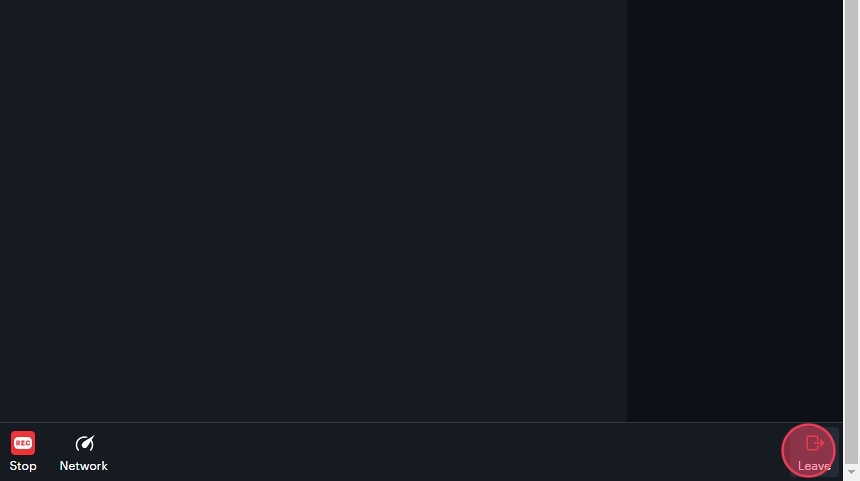
- Leave the meeting:
When finished, click Leave.
Schedule Meeting
- Scheduling a Meeting:
- Click Schedule meeting. A dialog box will open where you can enter meeting details.

- Entering the Meeting Title:
- Enter the title in the Enter title field.

- Selecting the Calendar:
- Select the calendar (Google, Outlook, or Microsoft 365) from the dropdown.

- Setting Up Recurring Meetings:
- Check the Recurring event box for recurring meetings.
Note: Non-recurring event rooms expire two weeks after the selected end date.

- Setting the Date and Time:
- Enter the date and time, then click Schedule Meeting.

- Copying Meeting Details:
- Click Copy Meeting Info to copy the meeting details and send to recipients.

- Adding Meeting to Calendar:
- Click Add to Calendar to add the meeting details to your selected calendar.


