This document applies to the following user roles within Omnia:Account Administrator
Partner Administrator
- Navigate to Button Layouts:
Go to the Admin Portal and sign in.
Click the Phone System tab to expand it, then select Button Layouts.

- Add a New Button Layout:
- Click Add New.
- Enter a name for the button layout in the Name field.

- Set the Key Range:
- Enter the Start Key number. This is the first button you want to configure.
- Enter the End Key number. This should be greater than the start key number, covering all buttons you want to configure.
Notes:
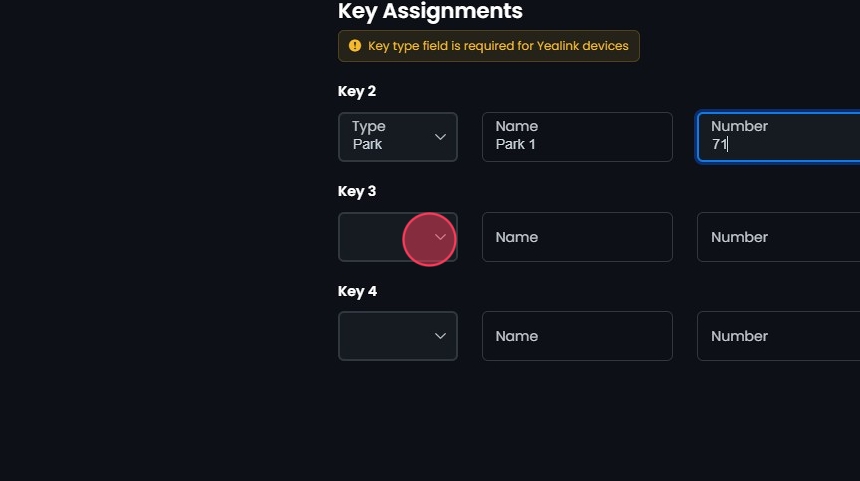
The End Key must be greater than the Start Key to create a valid range for button configuration.The Key type field is required for Yealink devices. Ensure this field is filled to avoid configuration errors.Key Assignments
- Assign Functions to Keys:
- Type:
- Click on the dropdown menu to select the function for the key. Options include:
- BLF (Busy Lamp Field): Monitors the status of another extension (busy or available).
- Park: Allows you to park a call on a specific number.
- Speed Dial: Provides quick dialing of a predefined number.
- BLF (Grandstream): Specific to Grandstream devices, similar to BLF.
- Speed Dial (Grandstream): Speed dial for Grandstream devices.
- Park (Grandstream): Park call for Grandstream devices.
- Name:
- Enter a descriptive name for the key (e.g., “Park 1” or “Voicemail”).
- Number:
- Select or enter the number associated with the function. This could be an extension number, a park slot number, or a speed dial number.

- Repeat for Additional Keys:
- Continue assigning Types, Names, and Numbers for each key within the range specified.
- Save Changes:
- After configuring all necessary keys, review your entries to ensure accuracy.
- Click Create then Yes to apply the changes.

- Duplicate layout:
- Click the Duplicate button next to a button layout to duplicate.
- Click Yes to confirm the duplication.

- Edit Layout:
- Click on the button layout you want to edit or click the Edit button next to it.
- Make your edits
- Click Edit, then Yes to confirm and save your changes.

- Delete Layout:
- Click the Delete button next to the Button Layout.
- Confirm the deletion by clicking Yes.

Search and Sort
- Search Button Layouts:
- Search Bar: Quickly find specific items by typing the name or a keyword in the search field. The system will filter the list based on your search input, displaying the relevant results.
- Sort: Click the sort icons next to column headers to arrange items in ascending or descending order.


