

Handling Incoming Calls
- Incoming Calls:
- You will receive a notification of an incoming call. Choose Accept to answer or Decline to reject the call.

Make a Call
- Open Dialer:
- Click Make a call to open the dialer and start making an outbound call.

- Making a Call:
- Enter a Phone Number: Type the number you wish to call.
- Start Call: Click Call From Softphone to initiate the call.

-
Call Saved Contact:
- Search and Select: Look up a saved contact and select it from the results. Click Call From Softphone to initiate the call.
- Transfer Status: When transferring a call, you can see the contact’s status:
- Green: The user’s phone is ringing.
- Blue: The user is on a call.
- Idle: The user is not on a call.

- Switch Devices:
- Use the Move to another device button to transfer the call to another device on your account.

Mute Feature
- Mute/Unmute:
- Click the Mute button to mute or unmute your microphone during a call.

Hold Feature
- Hold/Resume Call:
- Click the Hold button to put a call on hold.
- Click the Resume button to resume the call.

Softphone Dial Pad
- Access Softphone Dial Pad:
- Open Dial Pad: Click the blue arrow icon pointing to the right to access the softphone dial pad.
- Navigate Options: Use the dial pad to navigate options on an auto attendant.
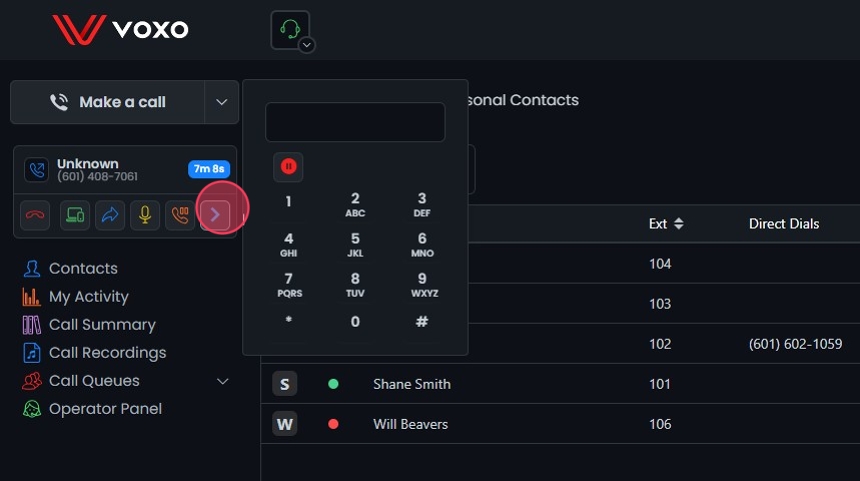
- Pause/Resume Recording:
- If call recording is enabled, click the Pause Recording button to pause or resume recording.

Transfer/Conference
- Access Transfer/Conference Options:
- Click the Transfer / Conference button (Blue Arrow) to open options for transferring a call or starting a conference call.

- Performing a Blind Transfer:
- While on an active call, select Transfer / Conference.
- Enter the phone number or contact, and select Blind Transfer to redirect the call without waiting for an answer.

- Performing an Attended Transfer:
- Transfer/Conference: Click the button while on an active call.
- Attended Transfer: Enter the number or contact, then select to speak with the party before transferring.
- Swap: Switch between calls, placing the other on hold.
- Merge: Combine calls into a conference call.
- Hang Up/Complete Transfer: Complete the transfer, connecting both parties.
- Cancel Transfer: Cancel the attended transfer and return to the original caller.

- Performing a Conference Call:
- Transfer/Conference: While on an active call, click the button.
- Enter Number/Contact: Input the number or contact, then select Conference.
- Swap: Switch between calls, placing the other party on hold.
- Merge: Combine calls into a conference call.
- Add Multiple Parties: Repeat the process to add more participants.
- Hangup: Select this to leave the conference; other parties will stay connected.

Park Feature
- Park a Call:
- Click the Park for User button.
- Enter the extension or name of the recipient.
- This action transfers the call to the specified extension and puts it on hold.
