

This guide provides step-by-step instructions on how to manage devices within the Omnia Admin Portal. It covers accessing, viewing, and deleting devices.
- Navigate toSystem Admin - Devices Go to the Admin Portal and sign in. Click the System Admin tab to expand it, then select Devices.

Viewing Devices
- View the List of Devices:
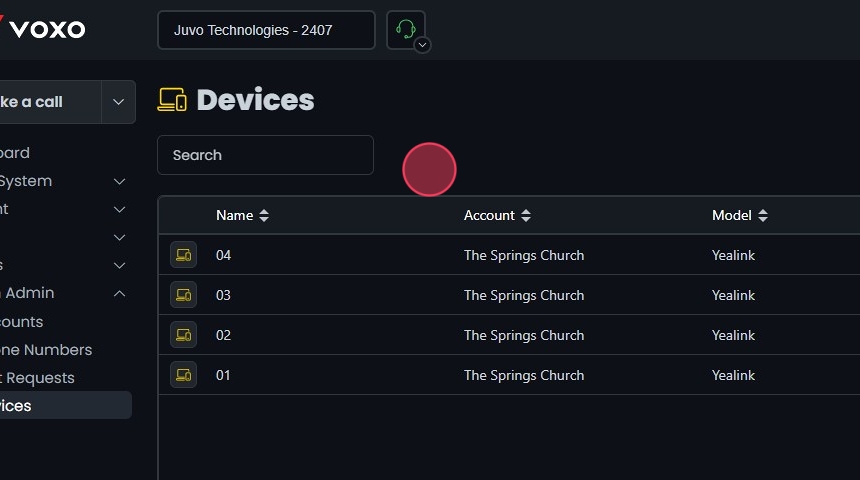
- The Devices page will display a list of devices along with their names, accounts, models, and MAC addresses.
- Search for a Specific Device:
- Use the Search bar at the top of the page to find a specific device.
- Click the sort icons next to the column headers to arrange items in ascending or descending order.

Deleting Devices
- Delete the Device:
- Click the Delete button next to the device.
- A confirmation dialog will appear. Click Yes to confirm the deletion.
- For detailed instructions on managing devices, please refer to the Devices document.
