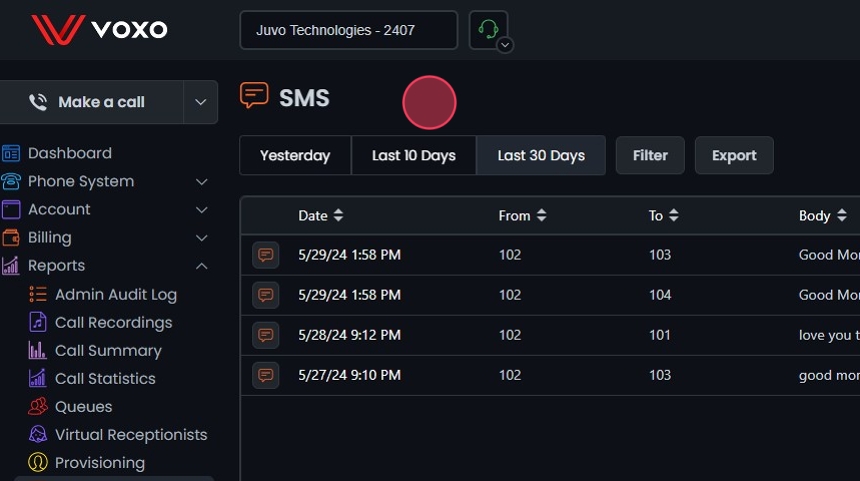
The SMS Logs Report allows you to view and manage SMS messages sent and received.
Access to this Report:Access to this report is based on your user role. You may not be able to access and view a specific report and all of its features if your role does not permit it.
Accessing the SMS Logs
- Access the SMS Logs:
- Go to the Admin Portal and sign in.
- Click the Reports tab to expand it, then select SMS Logs.

Viewing the SMS Logs
- View the SMS Logs:
- The SMS logs display a table with columns such as Date, From, To, and Body. The initial results shown will be for today’s date.
- Sort Icons: Click the sort icons next to the column headers (Date, From, To, Body) to arrange items in ascending or descending order.
- The initial results shown will be for today’s date.

Filtering SMS Logs
- Preset Filters:
- Yesterday: Click this button to quickly filter the log entries from the previous day.
- Last 10 Days: Click this button to quickly filter the log entries from the last 10 days.
- Last 30 Days: Click this button to quickly filter the log entries from the last 30 days.

- Filter Settings:
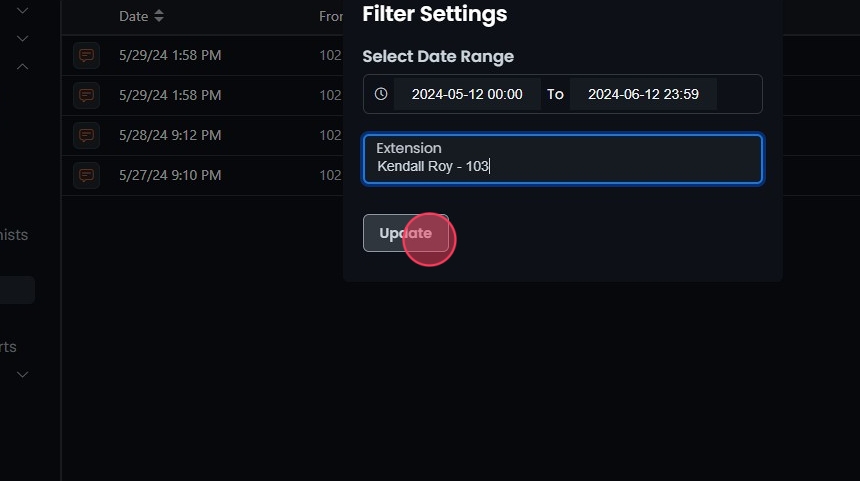
- Click Filter to open the filter settings.

- Select Date Range:
- Choose the start and end dates to define the period for which you want to view logs.
- You can also use the preset options like Last Week, Last Month, Last 3 Months, Last 6 Months, and Last Year.
- In addition to the date range, you can also filter by a specific time range within the selected dates.

- Clear Filters:
- Click Clear to remove the filters if needed. This allows you to start over while picking from your date ranges.

- Filter By Extension:
- Select the extension from the dropdown menu to narrow down the results to messages sent or received by a specific extension.

- Apply Filter:
- Click Update to apply the filter settings.
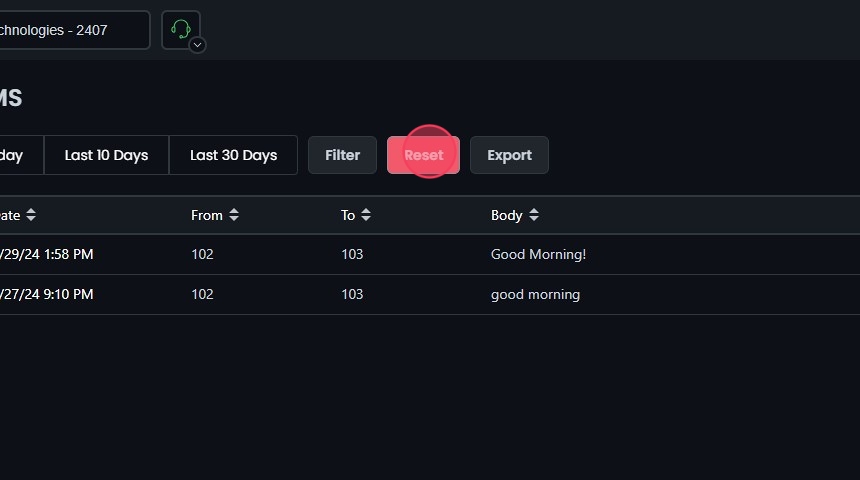
- The details will be displayed on the screen based on your filters.
- Reset Filters:
- Click Reset to remove your filters and start over if needed.
Exporting the SMS Log
- Exporting the SMS Logs:
- Click Export to download the filtered SMS log data in CSV format.
- Click OK to confirm the export.

Understanding the SMS Logs Table
- Understanding the SMS Logs Table:
- Date: Shows the timestamp of the SMS.
- From: Displays the extension number of the sender.
- To: Displays the extension number of the receiver.
- Body: Shows the content of the SMS.